
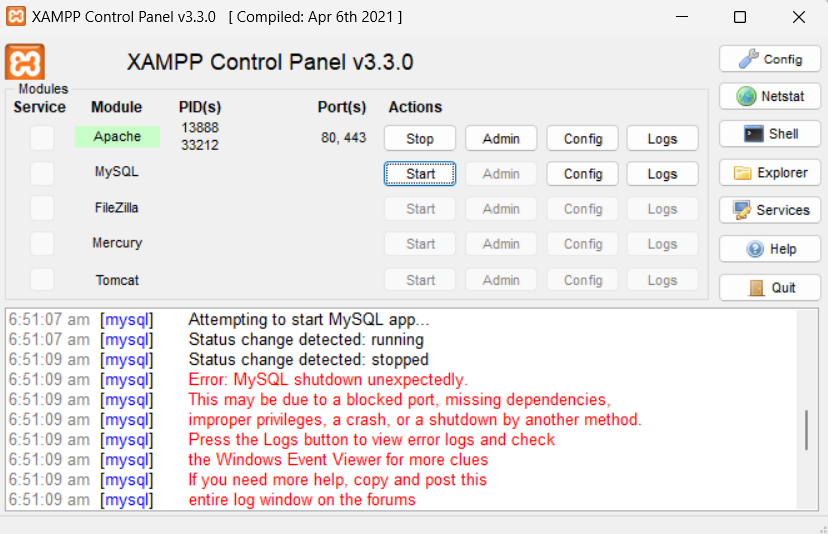
MySQL shutdown unexpectedly
Fixing MySQL Shutdown Issue in XAMPP
If you’re encountering the error “MySQL shutdown unexpectedly,” follow these steps to resolve it. Before proceeding, ensure that you rename the data folder located at C:\xampp\mysql\data to old_data. Then, perform the following steps:
Steps to Fix the Issue
- Create a New Data Folder:
- Navigate to
C:\xampp\mysql. - Create a new folder named
data.
- Navigate to
- Copy Backup Files:
- Go to
C:\xampp\mysql\backup. - Copy all the files and folders from this backup directory into the newly created
datafolder.
- Go to
- Transfer Specific Files from Old Data Folder:
- From
C:\xampp\mysql\old_data, copy theibdata1file and thetestfolder. - Paste these into the new
datafolder.
- From
- Start MySQL:
- Open the XAMPP control panel.
- Start the MySQL service.
Summary of Solution
- Rename the
mysql/datafolder tomysql/data_old. - Create a new
mysql/datafolder. - Copy contents from
mysql/backupto the newmysql/datafolder. - Move your database folders from
mysql/data_oldto the newmysql/data, excludingmysql,performance_schema, andphpmyadmin. - Replace the
ibdata1file frommysql/data_oldinto the newmysql/datafolder.
Conclusion
By following these steps, you can resolve the unexpected MySQL shutdown issue in XAMPP. This process ensures that your database files are properly restored and that MySQL can start without errors. Understanding and organizing your Laravel project folder structure is crucial for maintaining a scalable and efficient application. Following best practices in folder management will help keep your Laravel projects clean, organized, and easy to manage as they grow.
Youtube Video Link – https://youtu.be/84IOtc05TuA?si=u8t7CeXSxO2n2tk1
